How to back up a WordPress site (and restore it when it counts)

Losing your WordPress site without a backup is a nightmare you can avoid completely. One bad update, one hacked login, one server hiccup, and years of work can vanish in seconds.
The good news? Reliable WordPress backup solutions make that risk almost disappear. In this guide, we'll walk through what to back up, how often, which tools actually work, and how to restore your site when it counts.
Let's make sure a bad day never turns into a disaster.
To back up a WordPress site, save both your files and your database, store the copy off-site, and automate it on a schedule that matches how often your site changes. You can do this with a plugin like UpdraftPlus, at the hosting level, or manually through cPanel or SFTP. Always test a restore before you need one.
Why WordPress backups matter more than you think
Most people don't think about backups until they need one. By then, it's too late.
A backup is your safety net. It's the difference between a five-minute fix and a total rebuild. Here's why it deserves your attention now, not later.
What can go wrong without a backup
WordPress is powerful, but it's not bulletproof. Plenty of things can break it, and most of them aren't your fault.
- Hacks and malware. Attackers target WordPress sites constantly, injecting code or locking you out.
- Bad updates. A plugin or theme update can clash with your setup and crash your site.
- Human error. One wrong click deletes a page, a folder, or an entire database table.
- Host failures. Hardware fails. Servers go down. It happens, even to good hosts.
Good security helps you avoid many of these. Our guide on website security best practices is worth a read. But even the safest site needs a backup.
How much data you can actually lose
People underestimate what "losing your site" really means. It's not just the homepage.
Without a backup, you can lose your posts, pages, and media library. You can lose user accounts, comments, and every setting you've ever tweaked. You can lose plugin configurations that took hours to get right.
Your entire database can go too. That's where the real work lives. Rebuilding all of it from memory is not realistic.
Why backups are not just for big websites
Some people assume backups are only for large, busy sites. That's wrong.
A small business site or a personal blog holds just as much value to its owner. Losing your portfolio, your client pages, or your carefully written content hurts no matter the size.
In fact, smaller sites often have fewer resources to recover. A backup levels the playing field. Everyone deserves one.
What a complete WordPress backup includes
Not all backups are equal. A real backup captures everything needed to bring your site back exactly as it was.
Skip a piece, and you're left with a broken puzzle. Here's what a complete backup must cover.
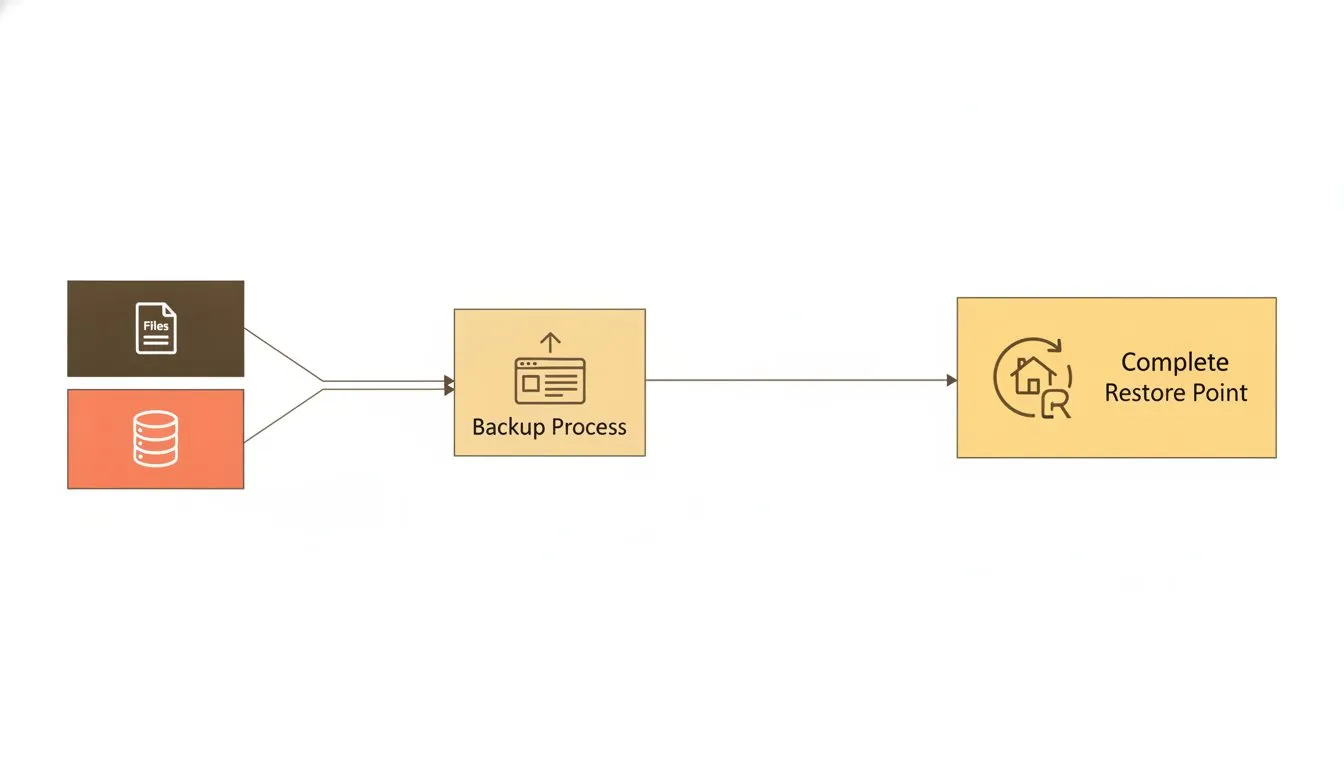
A complete backup captures both your files and your database.
Your WordPress files and theme customizations
This is everything that lives on your server as actual files. It's the visible, tangible half of your site.
- Core WordPress files that run the software itself.
- Themes, including any custom code or styling you've added.
- Plugins and their files.
- The uploads folder, which holds all your images, videos, and documents.
Lose these and your design, media, and functionality disappear. Your theme customizations are often the hardest to recreate.
Your WordPress database
The database is the brain of your site. It stores the content and structure that files alone can't hold.
Your posts, pages, and comments live here. So do your users, your menus, and nearly every setting across WordPress and your plugins.
A healthy, well-managed database matters for more than backups. Our guide on WordPress database management shows how to keep it fast and clean.
Why partial backups leave you exposed
Here's the trap many people fall into. They back up their files but forget the database, or the other way round.
A files-only backup restores your design but loses all your content. A database-only backup restores your content but breaks your layout and media links.
Neither gets you a working site. A complete backup needs both halves, taken together, so they match. That's the whole point.
The main WordPress backup solutions available
You've got real choices when it comes to WordPress backup solutions. Each has strengths, and the best setup often combines a few.
Let's look at the main options fairly, so you can pick what fits.
Method | Effort | Off-site by default | Versioned | One-click restore | Best for |
|---|---|---|---|---|---|
Plugins | Low | ✗ | ✓ | ✗ | Dashboard control and migrations |
Hosting-level | Lowest | ✓ | ✓ | ✓ | Hands-off, built-in protection |
Manual | High | ✗ | ✗ | ✗ | Extra copies before big changes |
Backup plugins worth using
Plugins are the most popular route, and for good reason. They're built for WordPress and easy to control from your dashboard.
- UpdraftPlus is a reliable favorite. It schedules automatic backups and sends them to cloud storage with a few clicks.
- Duplicator shines for full-site copies and migrations. It's great when you want to move or clone a site as well as back it up.
Both let you restore without touching server files directly. That makes them ideal if you'd rather stay out of the technical weeds.
Hosting level backups and what they cover
Quality hosting handles backups for you at the server level. This is the least effort option because it runs quietly in the background.
Good hosting-level backups are automatic, scheduled, and stored away from your live site. You don't have to remember anything.
This is where your host earns its keep. Reliable WordPress hosting should treat backups as a built-in feature, not a paid extra you bolt on later. When it's part of the plan, you're protected from day one.
Manual backups via cPanel or SFTP
Sometimes you want a copy in your own hands. Manual backups give you that control.
You download your files through SFTP or the file manager in cPanel. Then you export your database using phpMyAdmin. You keep both together in a safe place.
Manual backups are handy before a big change, like editing core files or testing new code. They're also a solid extra layer alongside automatic backups. Just don't rely on them as your only method, because it's easy to forget.
How to choose the right WordPress backup solution for your site
The best backup approach depends on your site and how much you can afford to lose. Let's match the right setup to your needs.
Three questions matter most: how often, where, and what features to demand.
How often you should back up your site
Backup frequency should follow how much your site changes. A site that updates daily needs backups far more often than one that sits still.
Site type | Recommended frequency |
|---|---|
Busy store or news site | Daily or real-time |
Active blog or business site | Daily to weekly |
Small or rarely updated site | Weekly |
Before any major update | Every single time |
If you run a shop, lean toward frequent backups. Losing a day of orders is painful. Our WooCommerce hosting keeps busy stores protected and fast.
Where to store your backups safely
Here's a rule worth tattooing on your brain. Never store your only backup on the same server as your site.
If that server fails, your backup goes down with it. Off-site storage keeps your copy safe and separate.
- Cloud drives like Google Drive or Dropbox are simple and reliable.
- Remote servers or dedicated backup storage give you more control.
- Your own device, as an extra copy, adds another layer.
Aim for at least two copies in two different places. Redundancy is your friend here.
What to look for in a hosting backup feature
Not every hosting backup is worth the name. When you judge one, check for these four things.
- Automated. It runs on schedule without you lifting a finger.
- Off-site. Backups are stored away from your live server.
- Versioned. You can go back several days, not just to yesterday.
- One-click restore. Recovery is fast and doesn't need technical skill.
If your current host doesn't tick these boxes, that's a red flag. It might be time to look at what best value hosting actually means. Backups are a big part of it.
How to restore a WordPress backup when things go wrong
A backup only matters if you can restore it. When something breaks, you want a clear path back.
Here's how restoring works, from the easiest method to the hands-on one.

A good restore process turns a crisis into a quick fix.
Restoring through your hosting control panel
This is the fastest route by far. When your host handles backups properly, restoring is often a single click.
You log into your control panel, find the backups section, and choose the version you want. The system rolls your site back to that point.
No file downloads. No database imports. This is why a strong hosting backup feature is worth so much. Talk to real people if you get stuck. Our support team is here to help.
Restoring manually using your backup files
If you're working from a manual or plugin backup, you can restore by hand. It takes a few steps but it's very doable.
- Upload your files. Use SFTP or cPanel's file manager to put your WordPress files back on the server.
- Create a database. Set up a fresh database in your control panel if needed.
- Import the database. Open phpMyAdmin and import your saved database file.
- Update wp-config.php. Make sure your database name, username, and password match.
- Check the site. Load your pages and confirm everything works.
Plugins like UpdraftPlus simplify this hugely. You upload the backup and let the plugin do the heavy lifting.
Testing your backups before you need them
Here's the truth nobody likes to hear. A backup you've never tested is not really a backup. It's a guess.
Test your restore process on a safe copy before disaster strikes. The best way is a staging environment, where you can practice without touching your live site.
estore a backup there and check it works end to end. Do this regularly, especially after major changes. Our guide to testing your website backups sets out a simple monthly and quarterly routine. When the real moment comes, you'll be calm because you've done it before.
Keep your site safe with the right setup
Backups aren't glamorous, but they're one of the smartest habits a site owner can build. They turn worst-case scenarios into minor inconveniences.
Pair strong backups with smart security, like two-factor authentication, and you cover both prevention and recovery. And remember to manage updates carefully, since a bad one is a common cause of trouble. Our guide on WordPress automatic updates helps you stay in control.
The right hosting makes all of this easier. Good web hosting should include reliable backups as standard, not treat them as an afterthought.
Let's bring it all together.
- Back up everything, files and database, so restores actually work.
- Match your frequency to how often your site changes.
- Store copies off-site, never only on your live server.
- Test your restores before you ever have to rely on them.
Choose the right way to back up your WordPress site and you'll never lose sleep over your site again. The right backup means a bad day never has to become a disaster.

Nickola Naous is the co-founder of Flashcloud and the technical half of the team. He's spent nearly two decades building and running web hosting infrastructure, and co-founded and sold a hosting company before starting Flashcloud. He writes about performance, servers, security, and how AI is reshaping the technology behind a fast, reliable website.
Connect on LinkedIn