How to test your website backups before you need them

Most website owners have backups. Very few have ever restored one.
That gap is where the trouble lives. A backup that has never been restored is an assumption, and you find out whether the assumption was right at the worst possible moment: when the site is down, a customer is waiting, and you're reading restore instructions for the first time.
The short version: restore a sample of your site to a separate location every month, run a full timed restore every quarter, and test again after any major change. Check that the restored site actually works, not just that the restore finished. Write down how long it took and what you did, so the real thing is a repeat rather than an experiment.
Here's how to do each of those properly.
Why backups fail when you need them

A backup that looks fine can still be unusable when you need it most.
Backups rarely fail because they don't exist. They fail because they're not what you thought they were.
Something is missing. The files are there but the database isn't. Or the website comes back but the email doesn't. Plenty of backup setups cover one part of a site and quietly skip another.
It's older than you think. You reach for yesterday's copy and find the most recent working one is from last month, because the job has been failing silently since a password changed.
Nobody knows how long it takes. A restore that takes ten minutes and one that takes six hours are very different conversations with your customers. If you've never timed it, you can't tell anyone when you'll be back.
Someone restores the wrong thing. Under pressure, people restore an old backup on top of good data and turn a recoverable problem into a permanent one.
Every one of these is found in minutes during a calm test. During an emergency, each can cost you days.
This isn't just good housekeeping. The US Cybersecurity and Infrastructure Security Agency's #StopRansomware Guide tells organizations to "regularly test the availability and integrity of backups in a disaster recovery scenario."
Confidence isn't the same as proof. In Veeam's Data Trust and Resilience Report 2026, a survey of more than 900 senior IT, security and risk leaders, 90% of organizations said they were confident in their ability to recover from a cyber incident. Yet among organizations hit by ransomware where operations or data were affected, only 28% fully recovered all the affected data.
Check every backup automatically
The first layer is simply confirming that backups run. Most backup tools and hosts report whether each job completed, and it's worth making sure someone actually receives those reports.
But treat this as the minimum, not the test. A green "completed" status tells you the job finished. It doesn't tell you the backup contains what you need, or that you can bring your site back from it.
If you're not sure what your current backups cover in the first place, start with our guide on how to back up a WordPress site. The principles apply to most platforms.
Restore a sample every month
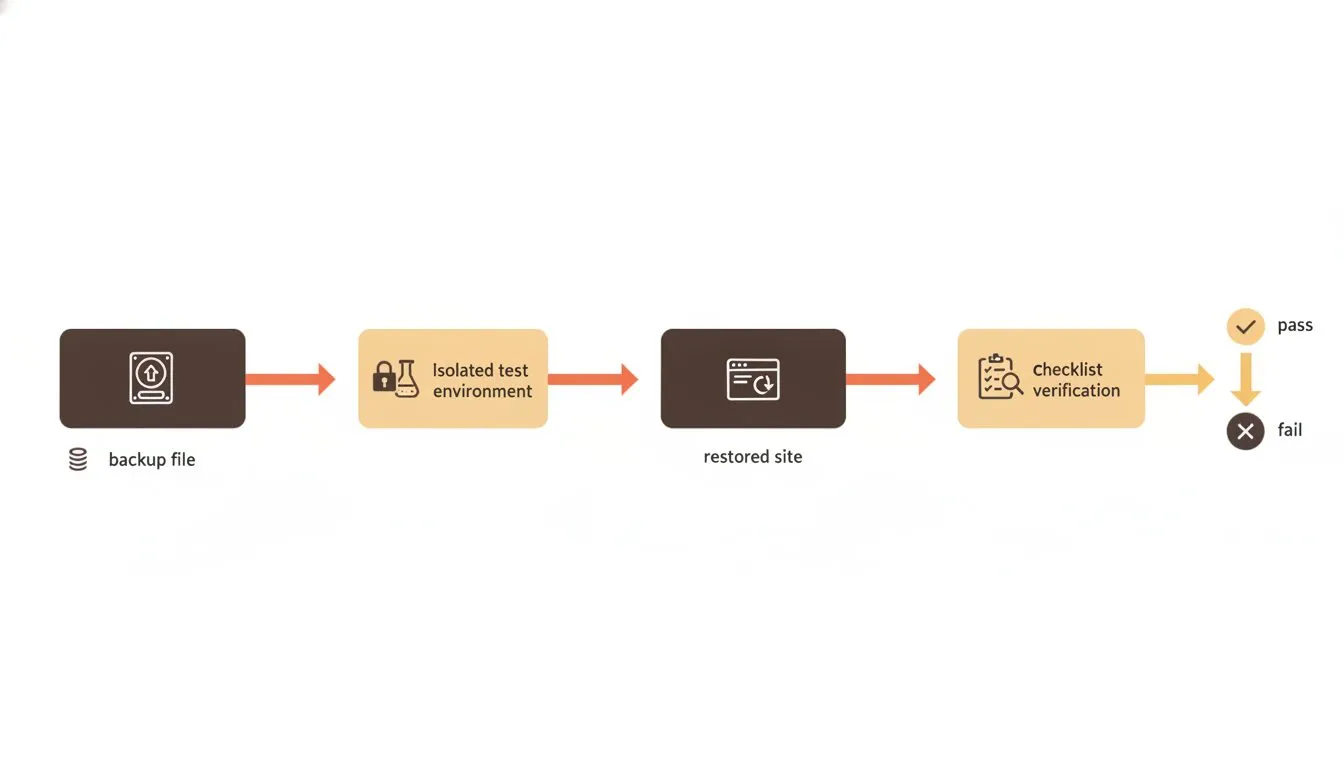
A monthly sample restore follows a simple repeatable sequence.
Once a month, take a recent backup and restore it somewhere separate from your live site. A staging copy or a spare subdomain works well. Never test by restoring over your live site.
If you don't have somewhere to restore to, our guide to staging environments explains how to set one up.
Then check the restored copy the way a visitor would, not the way a technician would:
- The home page and a handful of inner pages load properly.
- Your most recent content is there, not last month's.
- Images and downloads open.
- You can log in to the admin area.
- Contact forms submit, and if you run a store, you can reach the checkout.
- Email accounts and messages are present, if your backup is meant to include them. Email is often backed up separately, so check how yours is covered.
If all of that works, the backup is real. If any of it doesn't, you've just found the problem on a quiet Tuesday rather than during an outage.
Run a full timed restore every quarter
The monthly check tells you the backup is complete. The quarterly drill tells you how long recovery actually takes.
Pick a quarter-end and restore the whole site end to end, as if the live one had gone. Start a timer when you begin and stop it when the restored site passes the checklist above. Write the number down.
That figure is one of the most useful things you can know about your own business. It tells you what to say to customers during an outage, whether your current setup is acceptable, and whether it's worth paying for something faster. IT teams call it the recovery time. Its partner is the recovery point: how old your newest good backup is, which tells you how much work you'd lose.
Test again after any big change
Backups have a habit of quietly breaking after changes, because the change affects something the backup relied on. Run a quick test restore after:
- Moving to a new host or server. Our website migration checklist covers what to back up first.
- Changing backup tools or storage.
- A major platform or plugin update. See how WordPress automatic updates work.
- Adding something new that stores data, such as a shop, a booking system or a members area.
It usually takes about an hour, and it catches the failures that routine schedules miss.
Keep one copy somewhere else
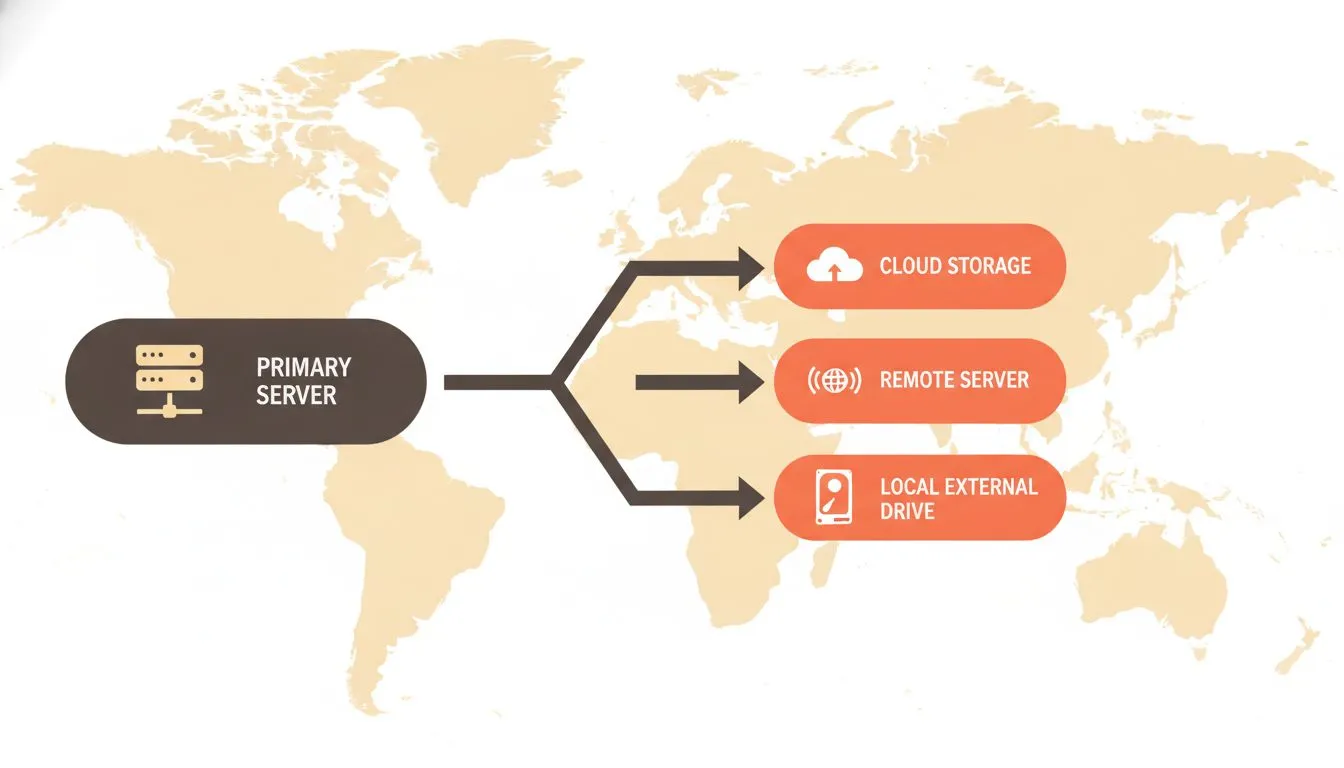
Storing copies in separate locations protects against site-wide failures.
Most hosts store backups separately from your live site, which protects you from most everyday problems. It doesn't protect you if you lose access to the hosting account itself, which is one reason account security matters, or if something happens to the provider.
For any site your business depends on, keep at least one recent copy completely outside your host, such as your own cloud storage. A common rule of thumb, often called 3-2-1, is three copies of your data, on two different types of storage, with one kept off-site. CISA also recommends keeping backups offline, because many ransomware variants look for backups they can reach and delete or encrypt them too. The attackers do look. In Sophos's State of Ransomware 2024 survey, 94% of organizations hit by ransomware said the criminals tried to compromise their backups, and 57% of those attempts succeeded. Those figures come from organizations with 100 employees or more, but a small site's backups are just as reachable if they sit in the same place as everything else. Include that copy in your testing as well. An off-site backup you've never restored has the same problem as any other.
Write a one-page restore plan
When something goes wrong, the person dealing with it may not be the person who set up the backups. A short written plan fixes that. It should say:
- Where the backups are and how far back they go.
- Who can restore them, and how to log in.
- How long a full restore took last time.
- Who to contact at your host if you need help.
- What to check afterwards.
Here's a template you can copy and fill in:
WEBSITE RESTORE PLAN
Backups are stored at: __________  Kept for: ____ days
Off-site copy is at: __________  Last tested: __________
Who can restore: __________  Login location: __________
Last full restore took: ____ hours, on __________
Host support contact: __________
After restoring, check: home page, recent content, images,
admin login, forms, checkout, email
Keep it somewhere you can reach even if your website and email are down. A printed copy is not old-fashioned here. It's sensible.
If a test fails
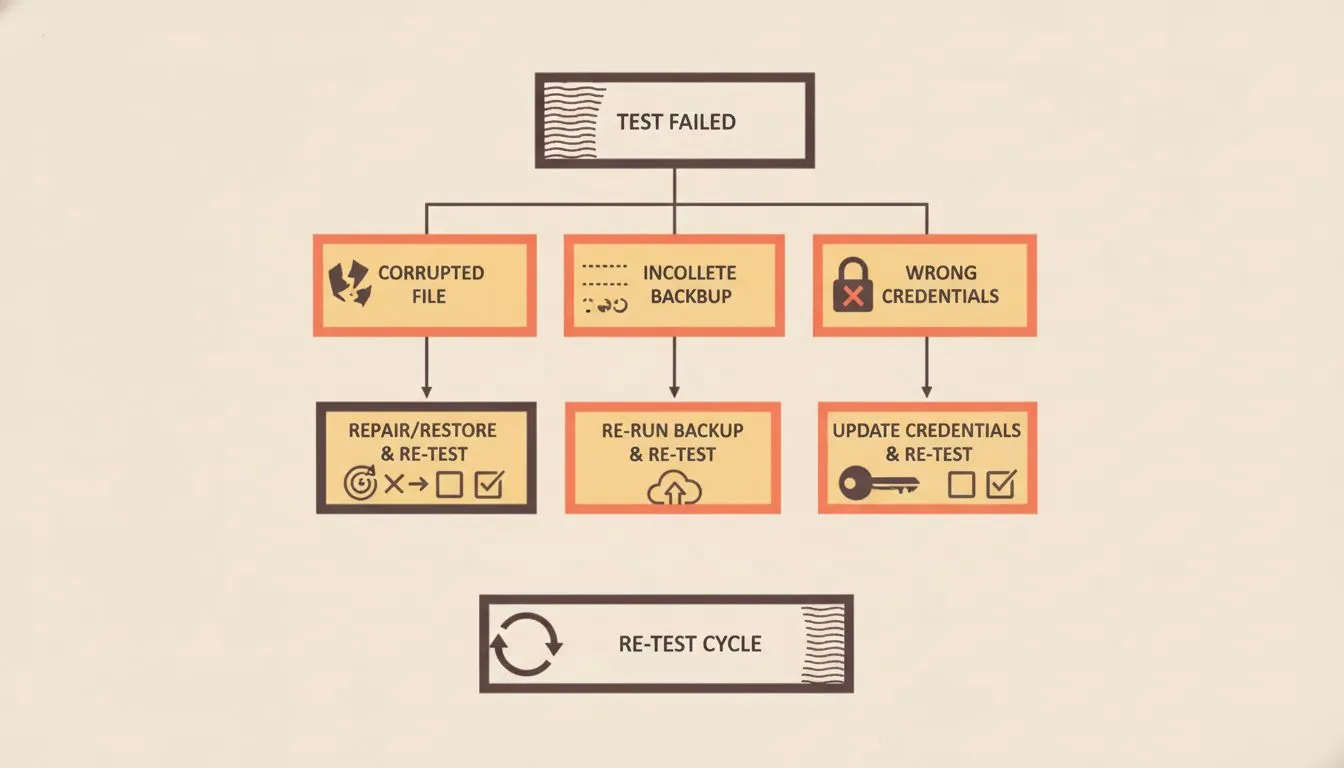
Follow this decision tree to diagnose and fix a failed restore test.
A failed test is good news. It means you found out now.
Work out which part was missing or broken, fix the backup setup, and test again until it passes. If the backups come from your host and you can't see why the restore failed, ask their support team to walk through it with you. A good host would much rather help you with a test than with a real emergency.
The habit that matters
None of this is complicated. The hard part is doing it when nothing is wrong, because that's when it feels least urgent.
Put the monthly check and the quarterly drill in your calendar now. The first test usually takes an afternoon. After that, it's routine, and the next time something breaks, you'll already know exactly how long it takes to fix.
If you host with Flashcloud, our backup options explain what's backed up, how long it's kept, and how to restore from the portal.

Nickola Naous is the co-founder of Flashcloud and the technical half of the team. He's spent nearly two decades building and running web hosting infrastructure, and co-founded and sold a hosting company before starting Flashcloud. He writes about performance, servers, security, and how AI is reshaping the technology behind a fast, reliable website.
Connect on LinkedIn